🖥️ Panel Layout
The main window has five regions: the TitleBar on top, the shortcut library on the left, the 8×2 shortcut grid in the centre (with a settings panel sliding out at the bottom), the preset app library on the right, and the device preview spanning the rest of the window.
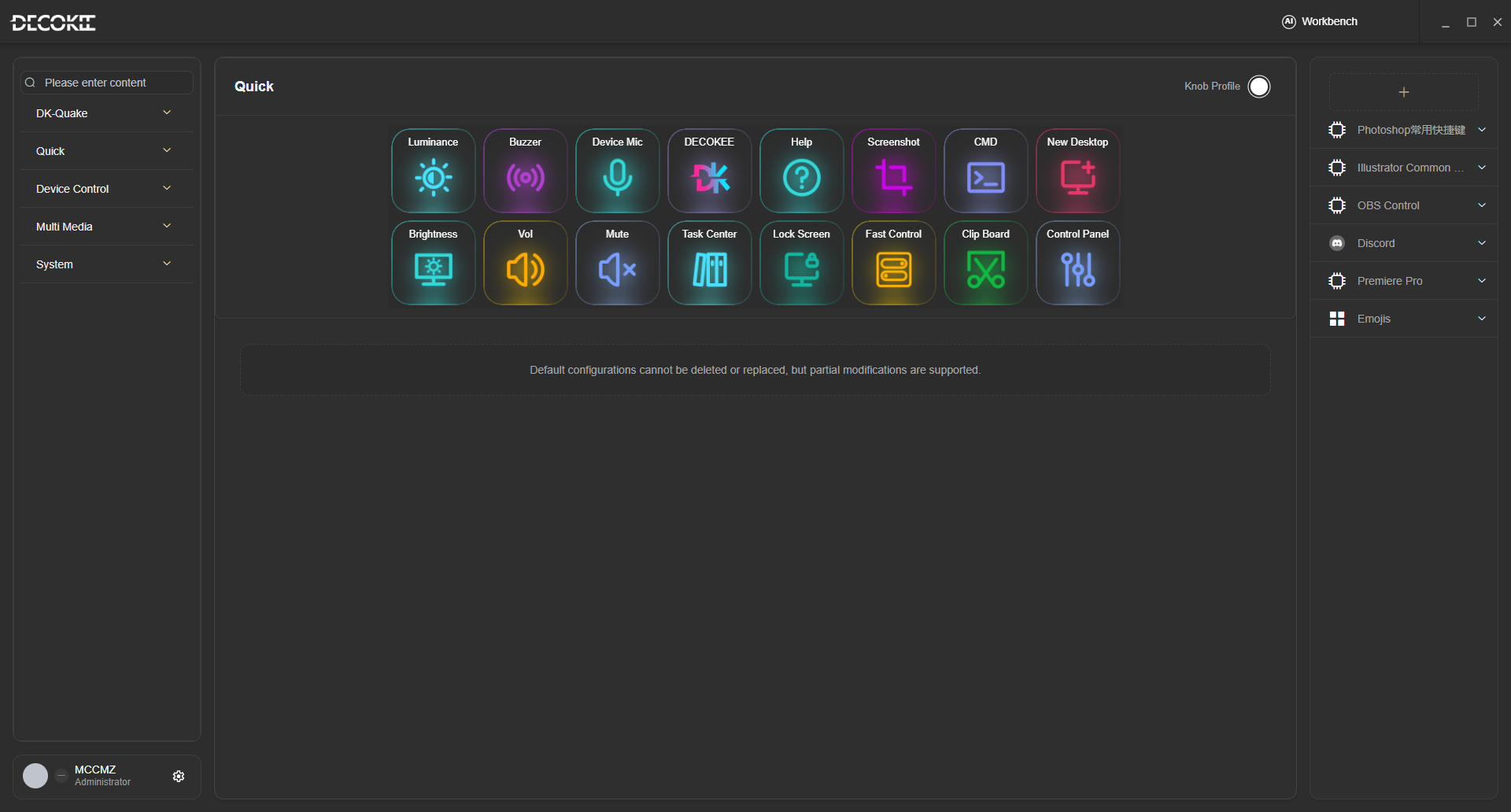
Above: the v0.4.95 main window with the “Quick” profile active.
TitleBar

| Section | Description |
|---|---|
| LOGO | DECOKEE brand mark |
| AI Workbench | Opens the Quake AI Workbench (OpenClaw / Meeting / AI Emoji / Shortcuts / Quake) |
| Window Controls | Minimize, Maximize, Close |
No longer in the TitleBar
- Device selector and Profile name are not in the TitleBar any more: the device is chosen on the device-selection page before entering the main window, and the profile name sits on top of the centre panel (switching happens on the device knob or in the Knob Config panel).
- User menu and ⚙ Settings moved to the account panel at the bottom of the left shortcut library.
Left Panel — Shortcut Library
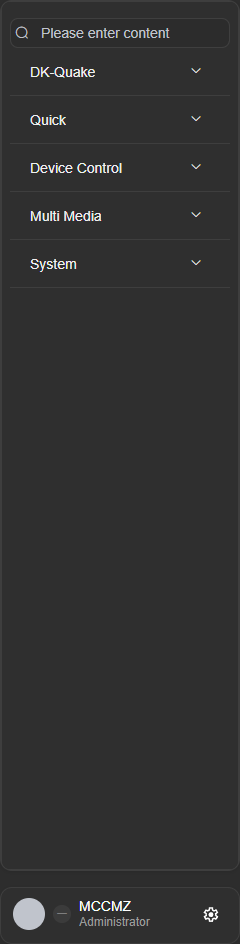
A draggable command library with a search box on top. The v0.4.95 build shows 5 categories (extra groups appear with plugins or when OBS is detected):
| Category | Contents observed |
|---|---|
| DK-Quake | Timer, device brightness, buzzer, device mic, create sub-page, Home Assistant, Claw agent, AI role, AI chat display, Claw chat display, Claw input, voice bot |
| Quick Operations | Website, hotkey, open, close, text, play audio, stop audio, multi-action |
| Device Control | Camera view, Home Assistant, 3D printer |
| Multimedia | Play/pause/next, volume, mute, brightness |
| System | System info (CPU/GPU/memory/disk/process/network/Bluetooth/power), lock, screenshot |
Names and contents follow what the UI actually shows. Every item has an icon and a name — drag it onto the grid to assign it.
Account panel at the bottom
Below the library sits the account panel: avatar, user name/role on the left, and the ⚙ gear on the right — that gear is the System Settings entry (see System Settings).
Center — Shortcut Grid + Bottom Settings
8 columns × 2 rows (16 cells total).
- Single click → select cell, bottom settings panel opens
- Double click → open that cell's parameter dialog
- Drag → reorder within profile, or from side panels
Bottom Settings Panel
When a cell is selected, you can adjust:
| Setting | Description |
|---|---|
| Icon | Change or upload custom icon |
| Title | Edit display text (max 20 chars) |
| Size | 1×1 / 2×1 / 1×2 / 2×2 |
| Action | Form varies by command type (hotkey recorder, URL input, multi-action editor, etc.) |
| Timing | Press duration, interval |
| Delete | Remove the shortcut |
Right Panel — AI App Library
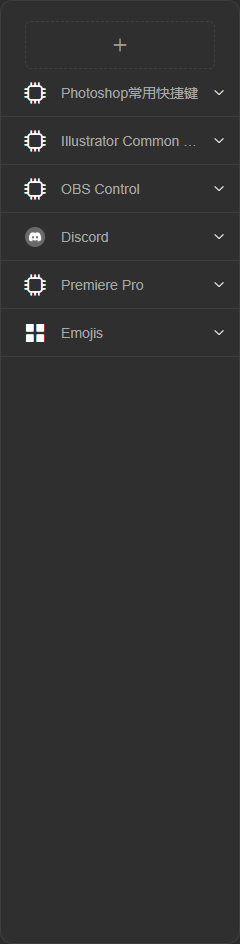
| Source | Content |
|---|---|
| Preset Apps | Discord, Premiere Pro keyboard sets |
| AI-generated | User describes in natural language, AI creates the config set |
| Emoji Packs | User-imported custom icons |
Use [+] on top to create a new AI plugin or emoji pack; drag any item onto the grid to assign it.
System Status Icons
CPU usage, memory, disk, GPU, network, battery, Bluetooth, process monitor — drag these into the grid to display live status on your DK-Quake screen. The temperature unit (℃ / ℉) is switched on the System Monitor settings page.
Sub-Window System
Each independent function of DK-Suite has its own dedicated window:
| Window | How to Open | Purpose |
|---|---|---|
| Main Window | Launch app | Main panel & grid configuration |
| AI Assistant | TitleBar AI → AI Chat | AI chat conversation |
| Settings | TitleBar ⚙️ | General / Device |
| Management Center | TitleBar AI icon | OpenClaw / Meetings / Emoji / AI plugins |
| Setup Wizard | Auto on first launch | First-time setup (see First-Run Wizard) |
| Icon Library | When editing grid icon | Browse built-in icons |