🎛️ Knob & Voice
QUAKE-H1 uses a core interaction logic of knob rotation + button press + touch screen. The stepless damping knob has a customizable RGB LED ring.
Knob Controls
| Action | Function |
|---|---|
| Rotate | Switch profile / adjust volume / page navigation |
| Press & hold 2s → beep sound | Start voice input → release to send AI chat |
| Press | Trigger assigned shortcut |
The “Knob Config” panel
The Knob Config toggle at the top-right of the main window actually opens the Profile manager:
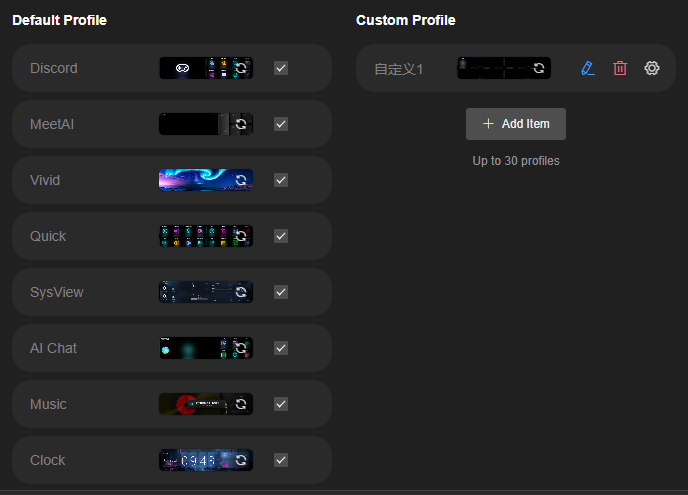
| Area | What it does |
|---|---|
| Default profiles | The 9 bundled profiles (Discord, Meeting Assistant, Colorful Screen, Quick Operations, System Monitor, AI Assistant, Music, Clock…); tick a row to enable it |
| Custom profiles | Create, refresh thumbnail, edit, delete or open settings for your own profiles |
| Row icons | Thumbnail, refresh, edit, delete, settings (⚙) |
| Add | “+ Add item” creates a new profile |
The panel states the limit: up to 30 profiles enabled at once.
What rotating the knob does on the device depends on what the active profile assigns to it (switch function, volume/brightness, previous/next profile).
Voice Route Modes
Long-press Knob triggers AI chat. The voice route depends on the active Profile:
| Mode | Description | Used by |
|---|---|---|
| Legacy Assistant | Original AI chat flow | Built-in profiles (except DK-Claw) |
| DK-Claw Agent | Route voice to a specific OpenClaw Agent (choose which agent) | DK-Claw profile |
| Direct Model | Skip agents, connect directly to an AI model (choose which provider and model) | Custom profiles |
Knob Verification
- Make sure DK-Suite is running and device detected
- Press & hold Knob 2s → hear a beep
- Say "Hello" toward the device
- Voice response confirms success